OpenAI Image Generation
Generate images with OpenAI's image model — the same family that powers image generation inside ChatGPT, brought into the VidOne workflow.
 VidOne AI
OpenAI's image model — strong instruction following, designed text inside the frame, and clean editorial output for the brief you actually wrote.
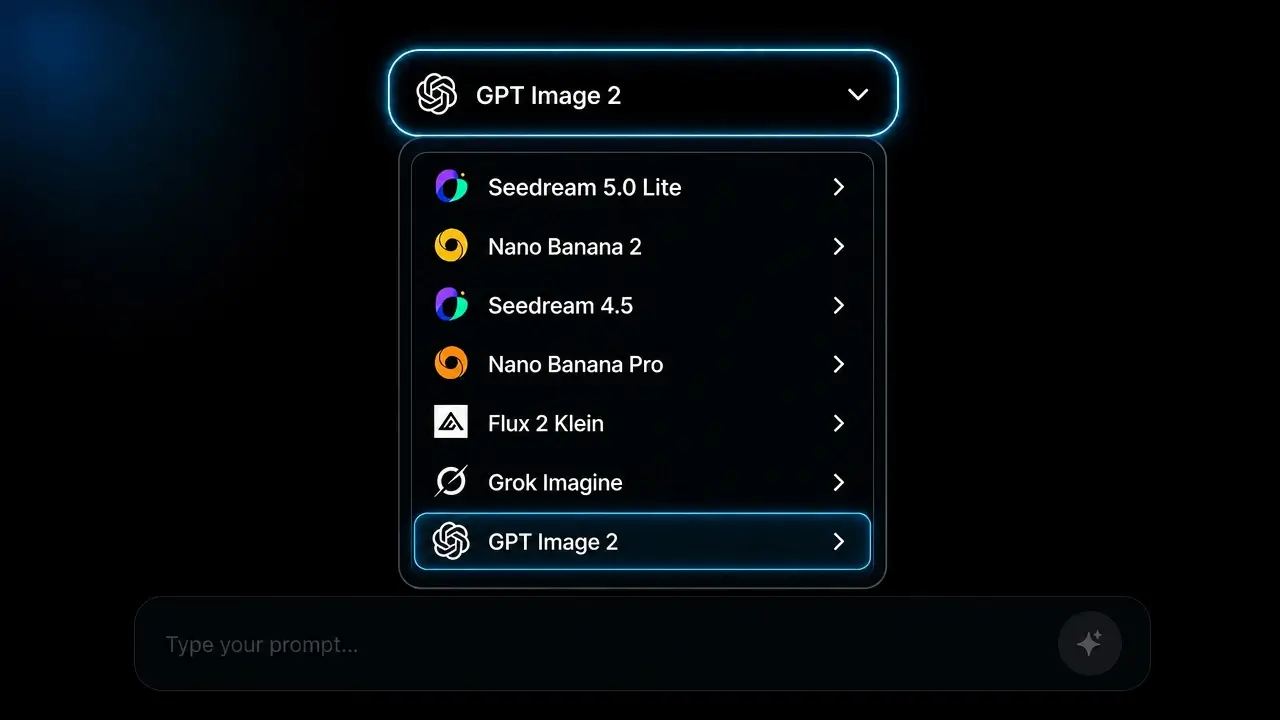
Pick GPT Image 2 from the image model menu. Switch between OpenAI, Google Nano Banana, BytePlus Seedream, and Black Forest Labs Flux without leaving the page.
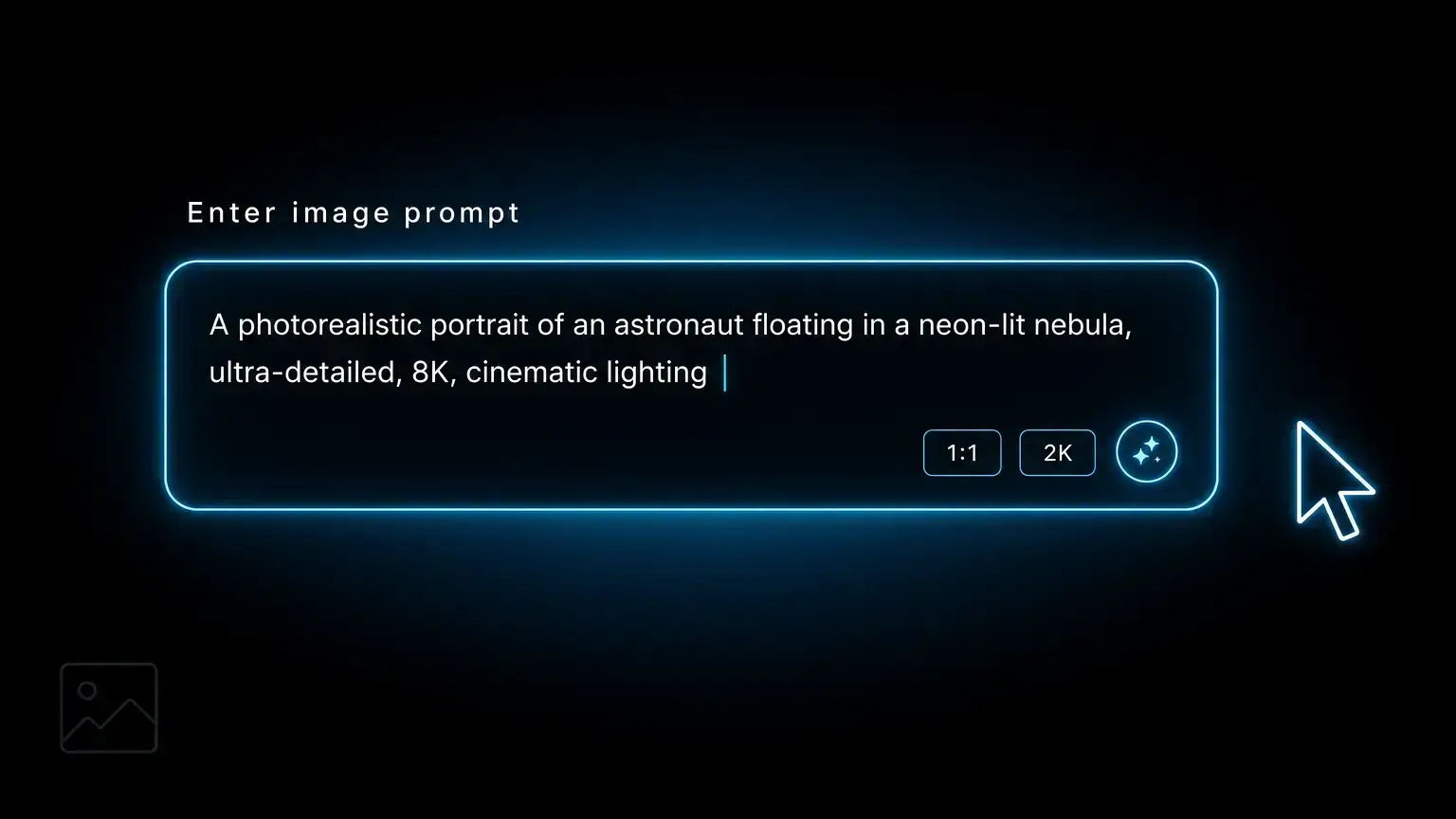
Describe the subject, scene, style, and any text or constraints. GPT Image 2 follows multi-part instructions closely — list what should be in the frame, what shouldn't, and what tone to hit.
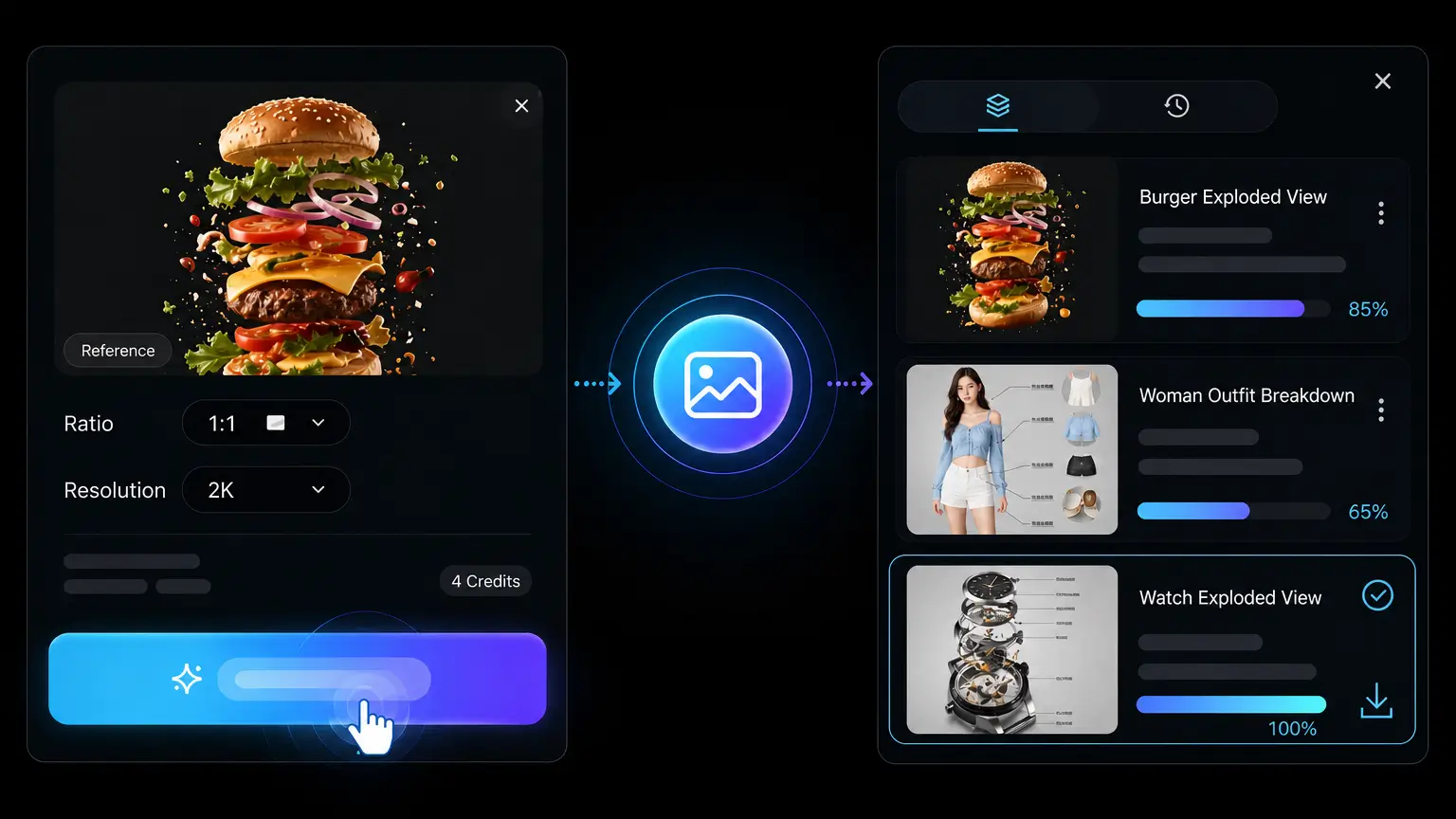
Render at standard or HD resolution in square, landscape, or portrait aspect ratios, then download the PNG — publish-ready for posts, ads, blog headers, and product pages.
GPT Image 2 is OpenAI's newer image-generation experience. It brings image creation and editing into a conversational workflow, so you can describe what you want and refine the result with follow-up instructions.

Use GPT Image 2 for illustrations, campaign concepts, product scenes, posters, social graphics, storyboards, and other visual drafts. You can begin with a text prompt, provide a reference image, or request an edit to an existing visual. The result can then become a standalone asset or the starting point for a video in VidOne.
Move from an initial idea to a usable visual without breaking your flow across separate tools. VidOne gives you a conversational place to generate, review, and refine images before continuing into broader content creation.
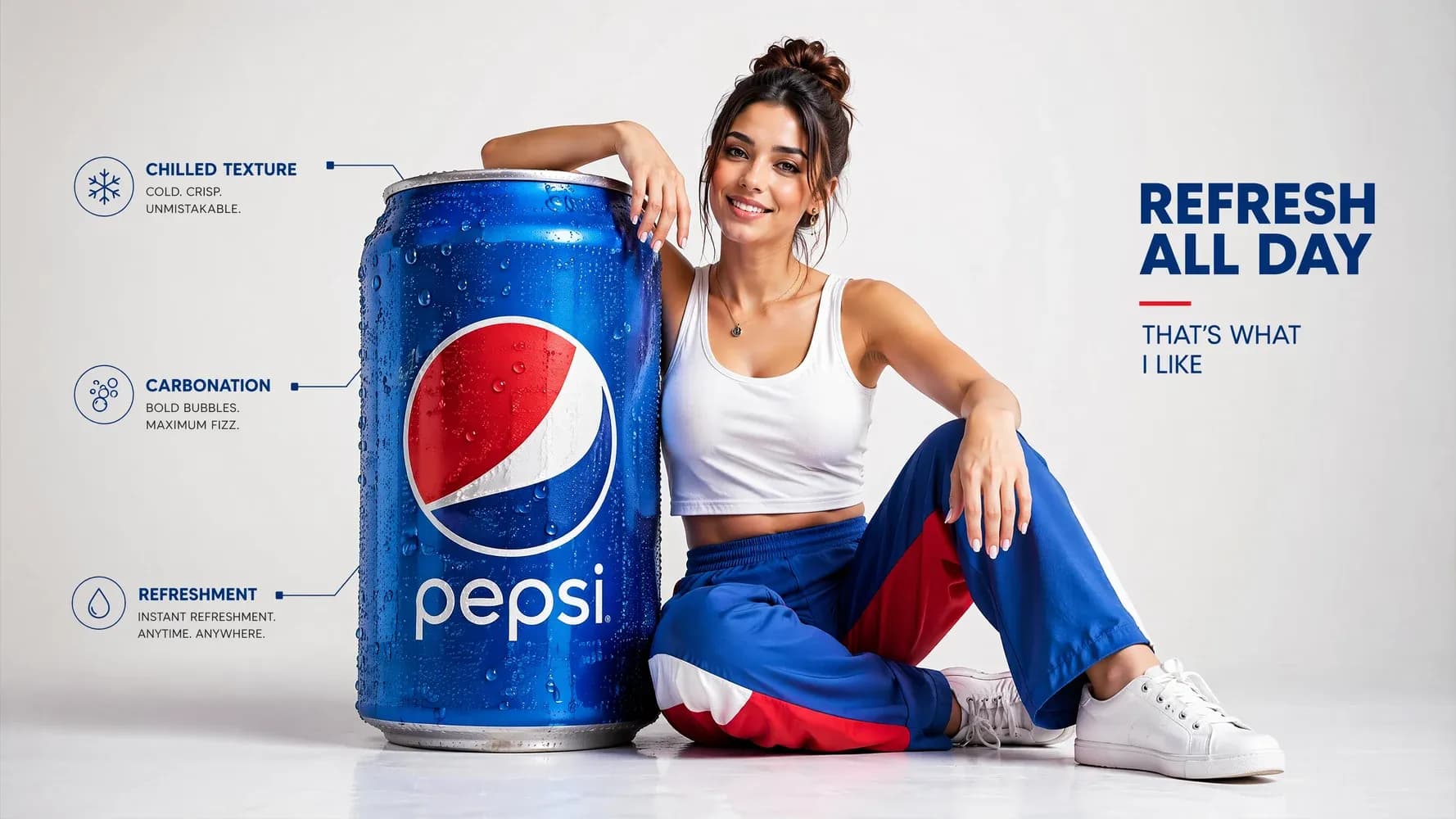
Describe the subject, setting, composition, mood, and visual style you want to see. GPT Image 2 interprets those instructions together, helping you move from a rough concept to a clear visual direction. This is useful for creators and marketers who need to explore campaign ideas, story frames, or branded concepts before committing to production.
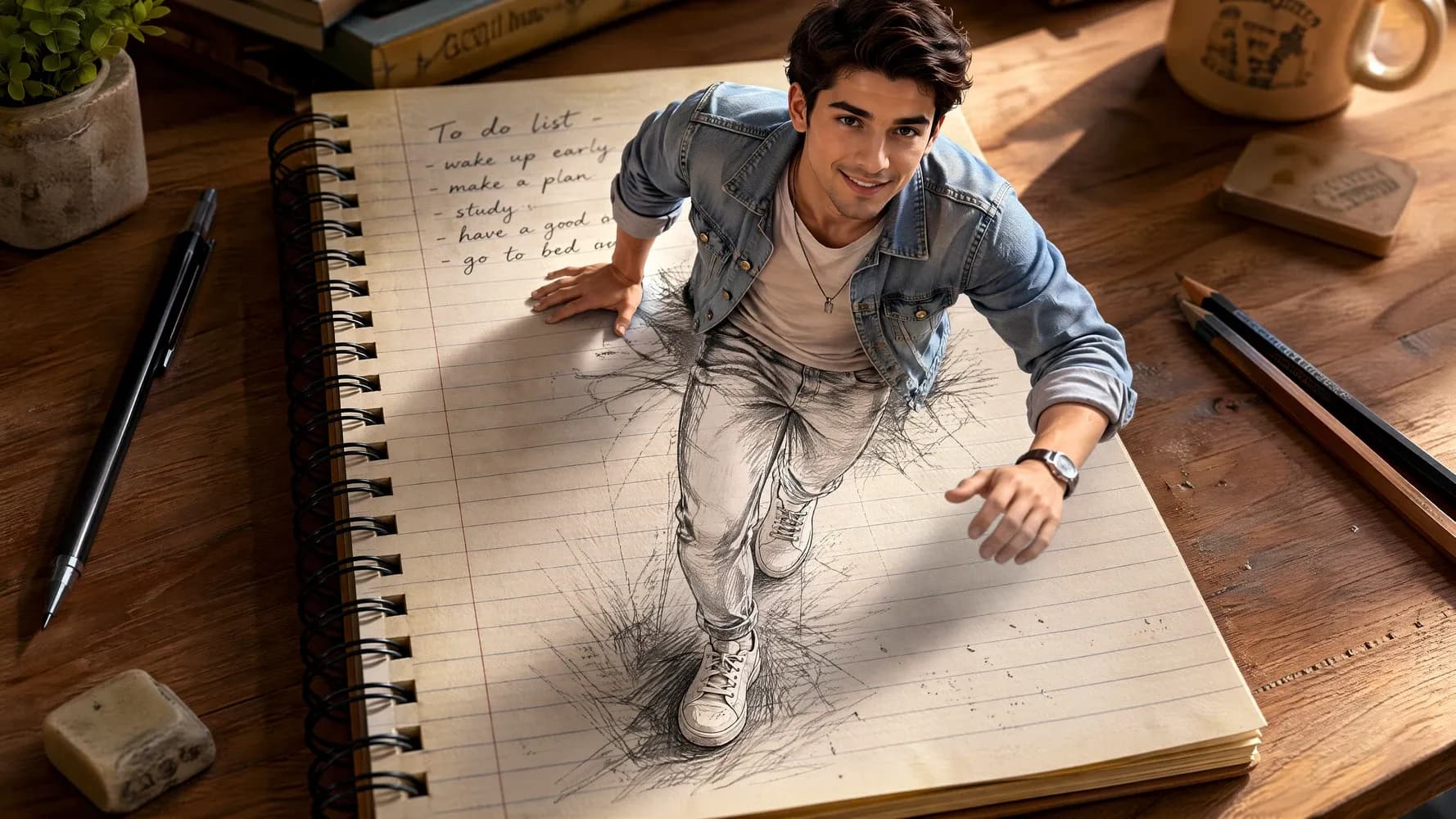
Ask for focused changes in everyday language instead of rebuilding the whole image manually. You can describe the element to adjust, the result you want, and what should remain unchanged. This conversational editing flow makes it easier to test alternate backgrounds, colors, layouts, or details while keeping your original creative direction visible throughout the process.
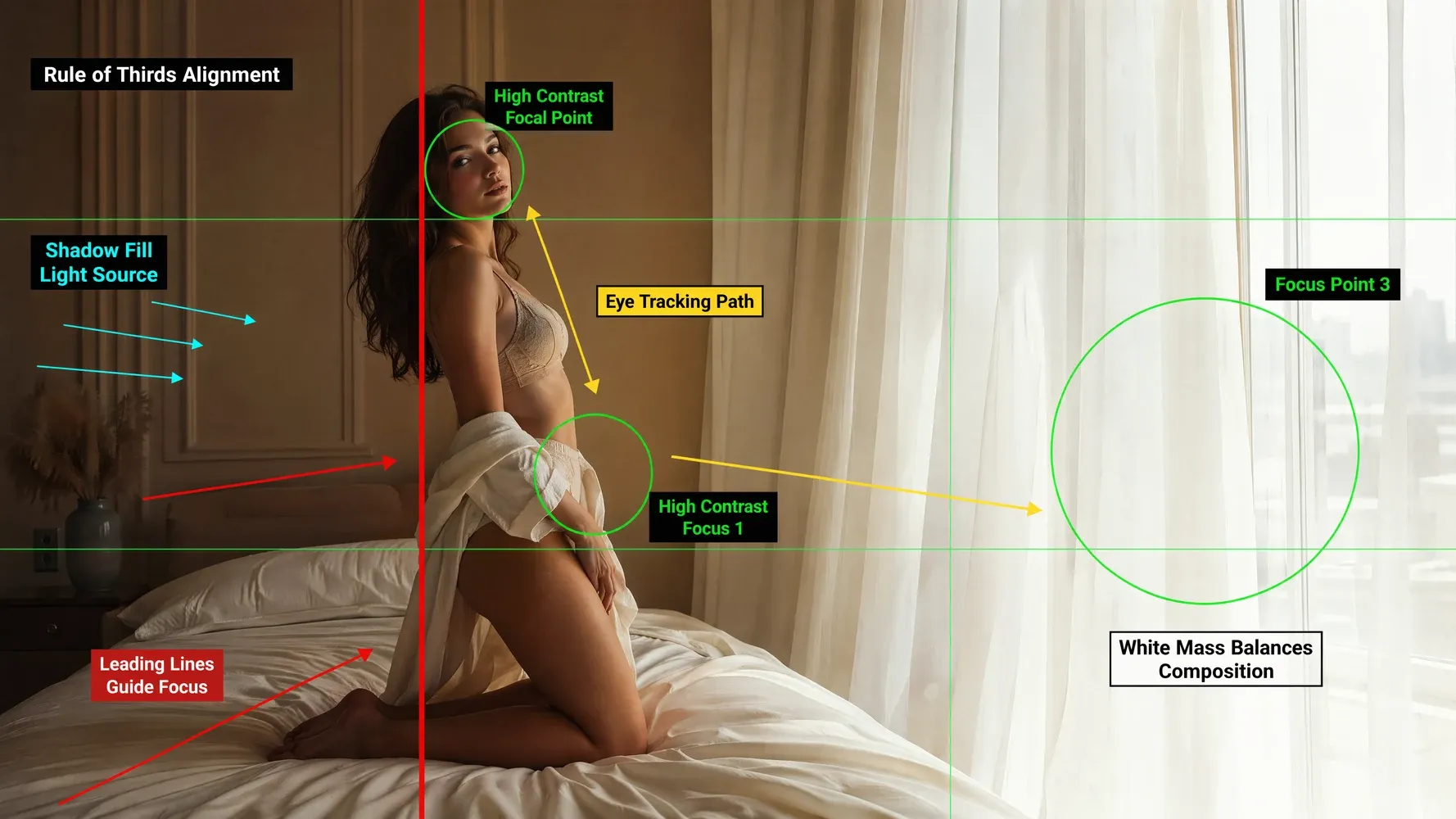
Upload a reference when words alone cannot capture the look, character, product, or composition you have in mind. The reference gives the model a visual starting point while your prompt explains what to preserve or transform. This helps teams explore new scenes and variations without losing the recognizable qualities that made the source image useful.
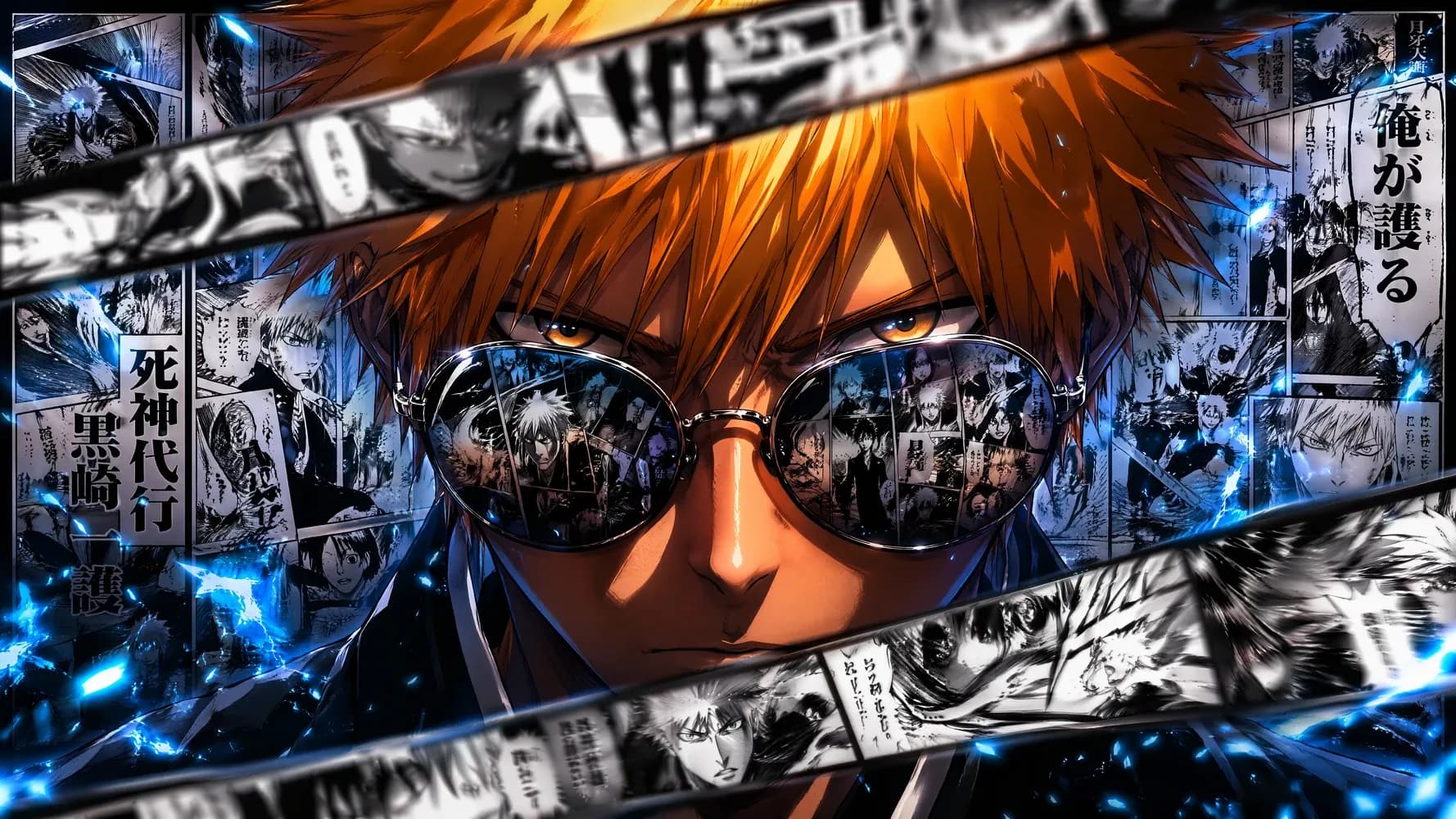
Treat the first generation as a draft rather than a final answer. Continue the conversation to improve framing, correct details, simplify the scene, or explore a new treatment. Iterative refinement keeps creative decisions in your hands and lets the model handle execution, so you can reach a stronger result without writing one enormous prompt upfront.
Good image generation is not only about producing something attractive. It is about directing the details that make a visual useful for a real campaign, story, product, or audience.
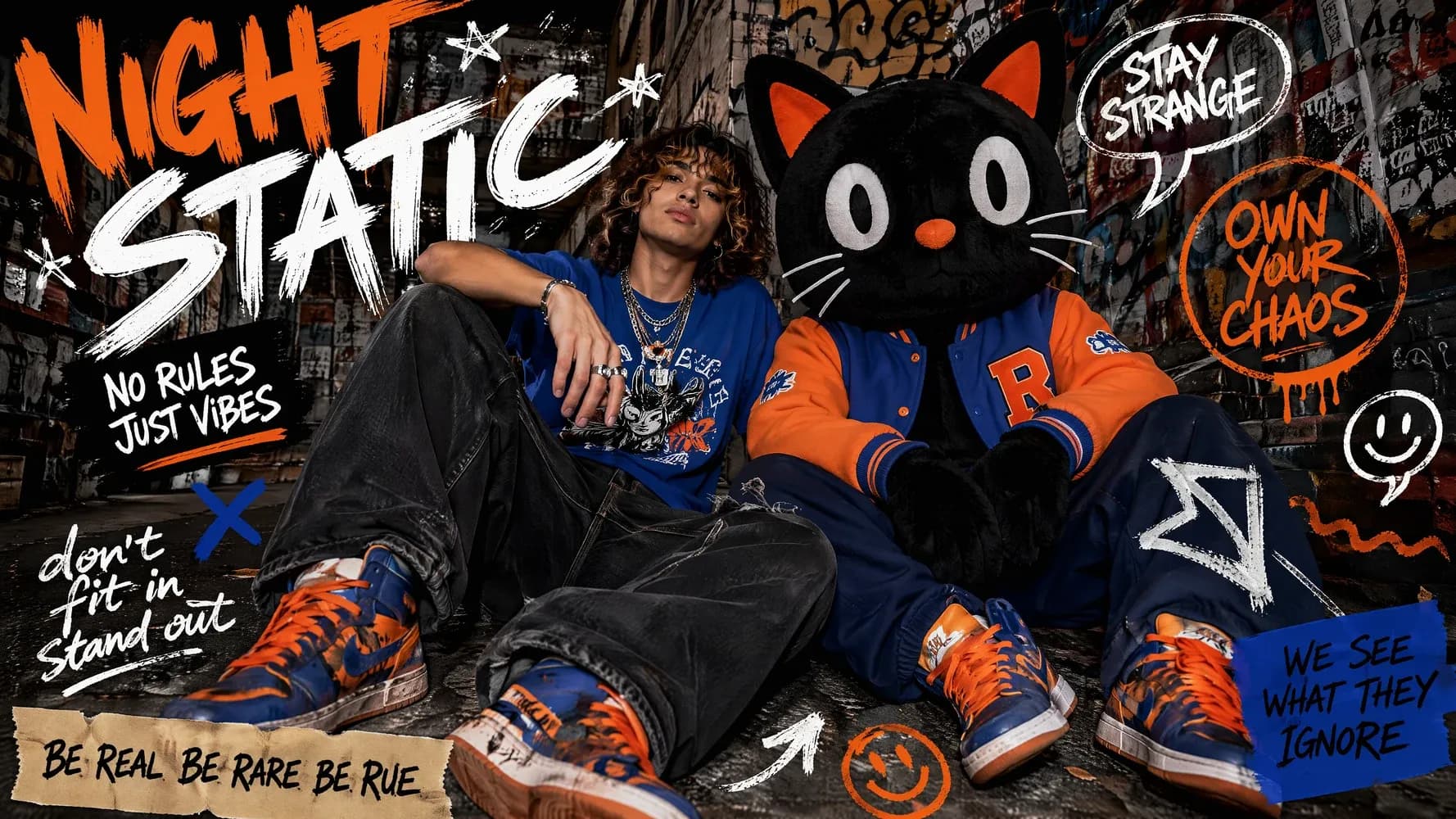
Create concepts for posters, covers, menus, packaging, and social graphics where words are part of the composition. Specify the exact copy, its placement, hierarchy, and surrounding design in your prompt. Clear instructions help you explore layouts faster and reduce the gap between a visual idea and an asset that a designer can refine.
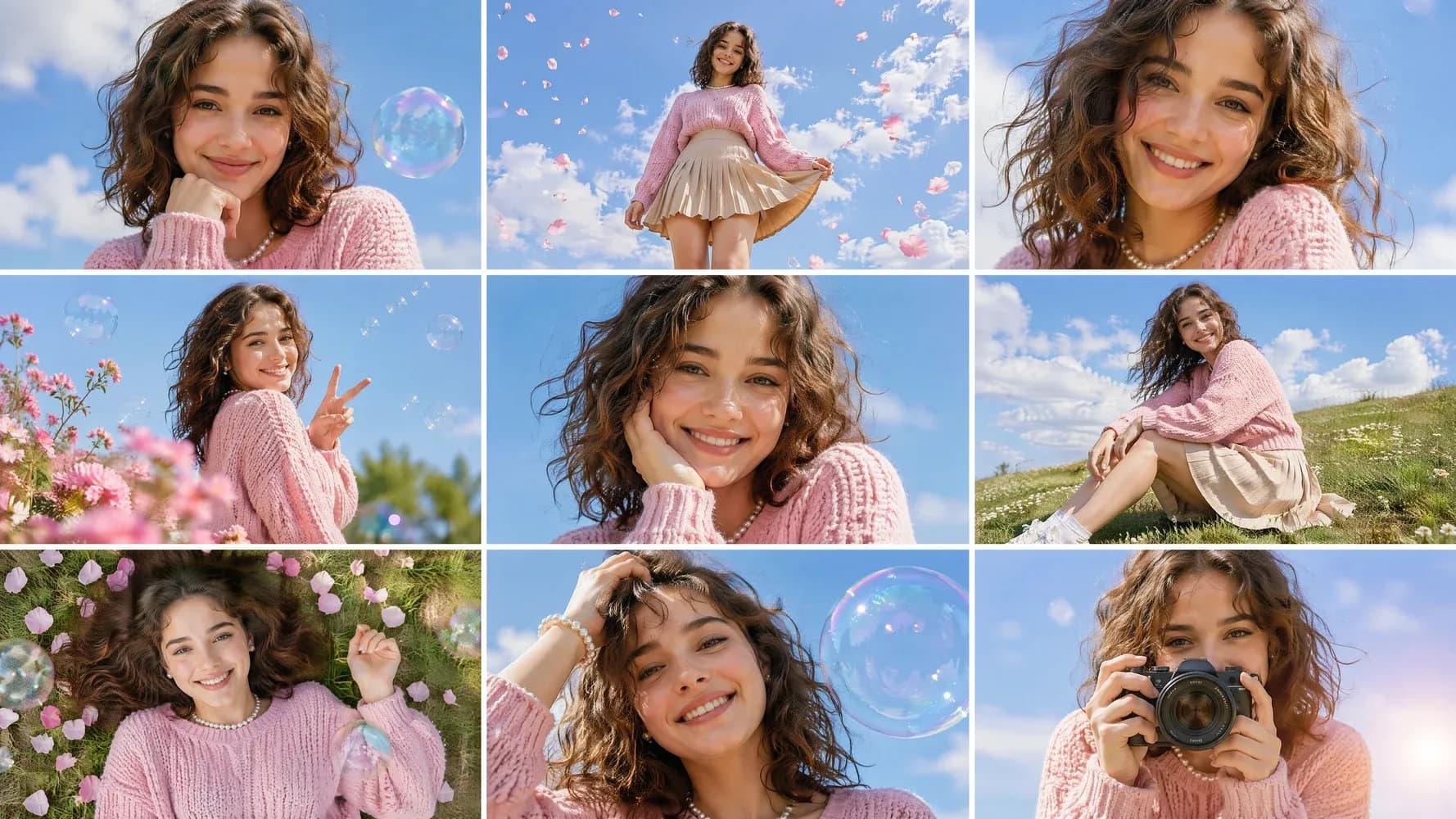
Use references and repeated creative instructions to guide characters, products, colors, and atmosphere across related images. A consistent visual direction matters when you are building a sequence rather than a single post. By carrying key details forward, you can develop storyboards, campaign variations, and scene concepts that feel connected instead of randomly generated.
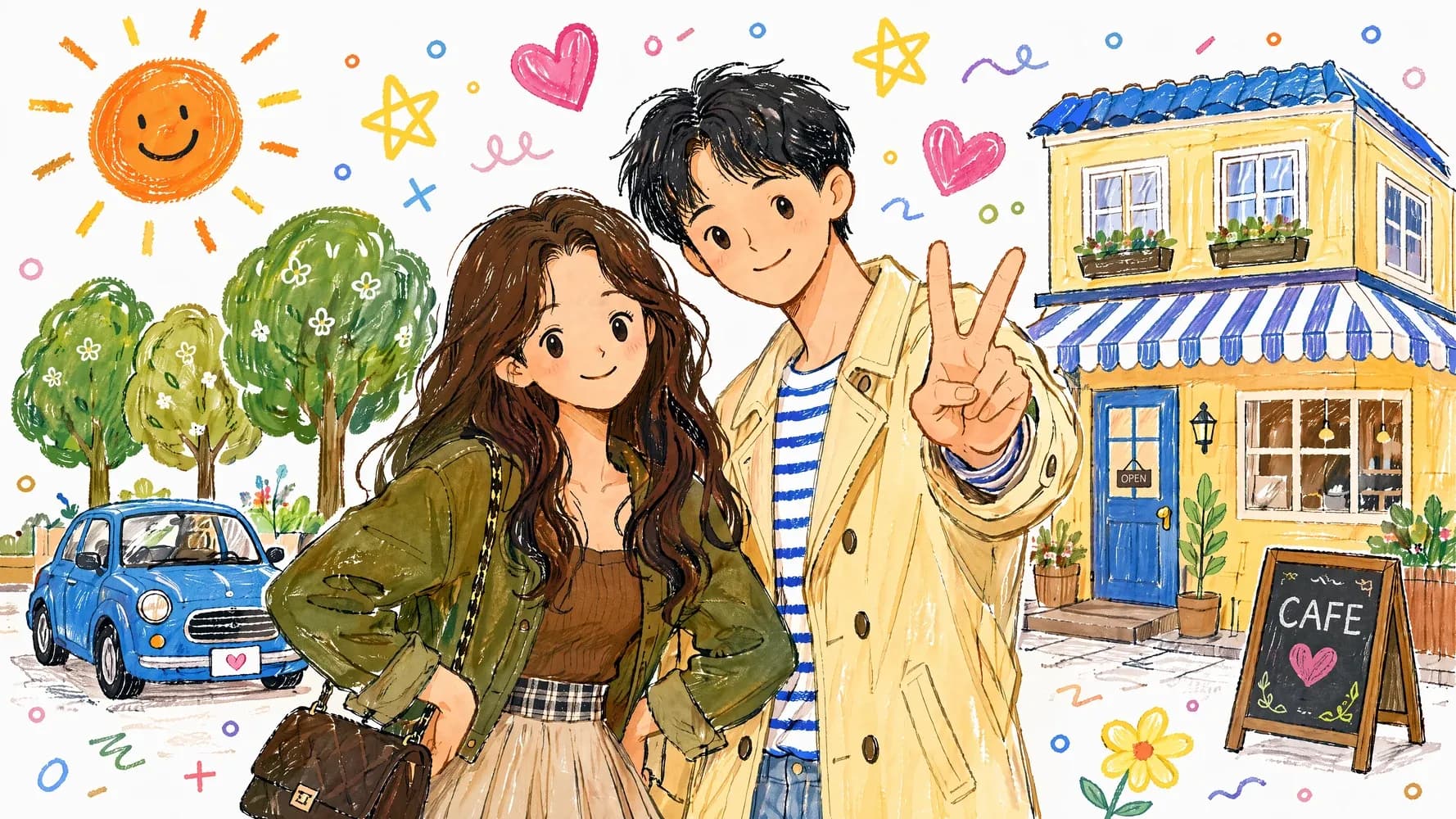
When most of an image works, describe only the part that needs attention. Ask to change an object, expression, background element, lighting choice, or piece of text while preserving the broader composition. Focused edits protect the decisions you already like, shorten the revision loop, and make experimentation feel more deliberate and less disposable.
GPT Image 2 can support quick ideation as well as more structured production. Start with the format your audience needs, then shape the image around its message, channel, and next creative step.

Develop visual directions for launch posts, event announcements, paid ads, and channel-specific campaigns. Include the intended platform, aspect ratio, headline, focal subject, and brand mood in your prompt. Marketers can compare several concepts quickly, select a direction, and refine it before turning the approved visual into a broader set of campaign assets.
OpenAI's image model — built for spec-driven creative work where the brief has constraints and the output needs to honour them.
Generate images with OpenAI's image model — the same family that powers image generation inside ChatGPT, brought into the VidOne workflow.
Compound briefs with multiple required elements and explicit constraints come back honoured rather than simplified.
Posters, packaging, signage, and UI screens render with legible, correctly-spelled designed text — one of the strongest in-image text capabilities among general image models.
Strong default composition and lighting — frames read art-directed without needing detailed direction. Useful for cover stills, magazine scenes, and brand visuals.
Render 1:1, 16:9, 9:16, 4:3, and 3:4 outputs — ready for posts, banners, vertical stories, blog headers, and ad placements without re-cropping.
OpenAI's safety and moderation policies apply to every render — built for legitimate brand, editorial, and creator use cases.
Video and image generation in one platform — Veo, Sora, Kling, Seedance, Wan, Grok and more.
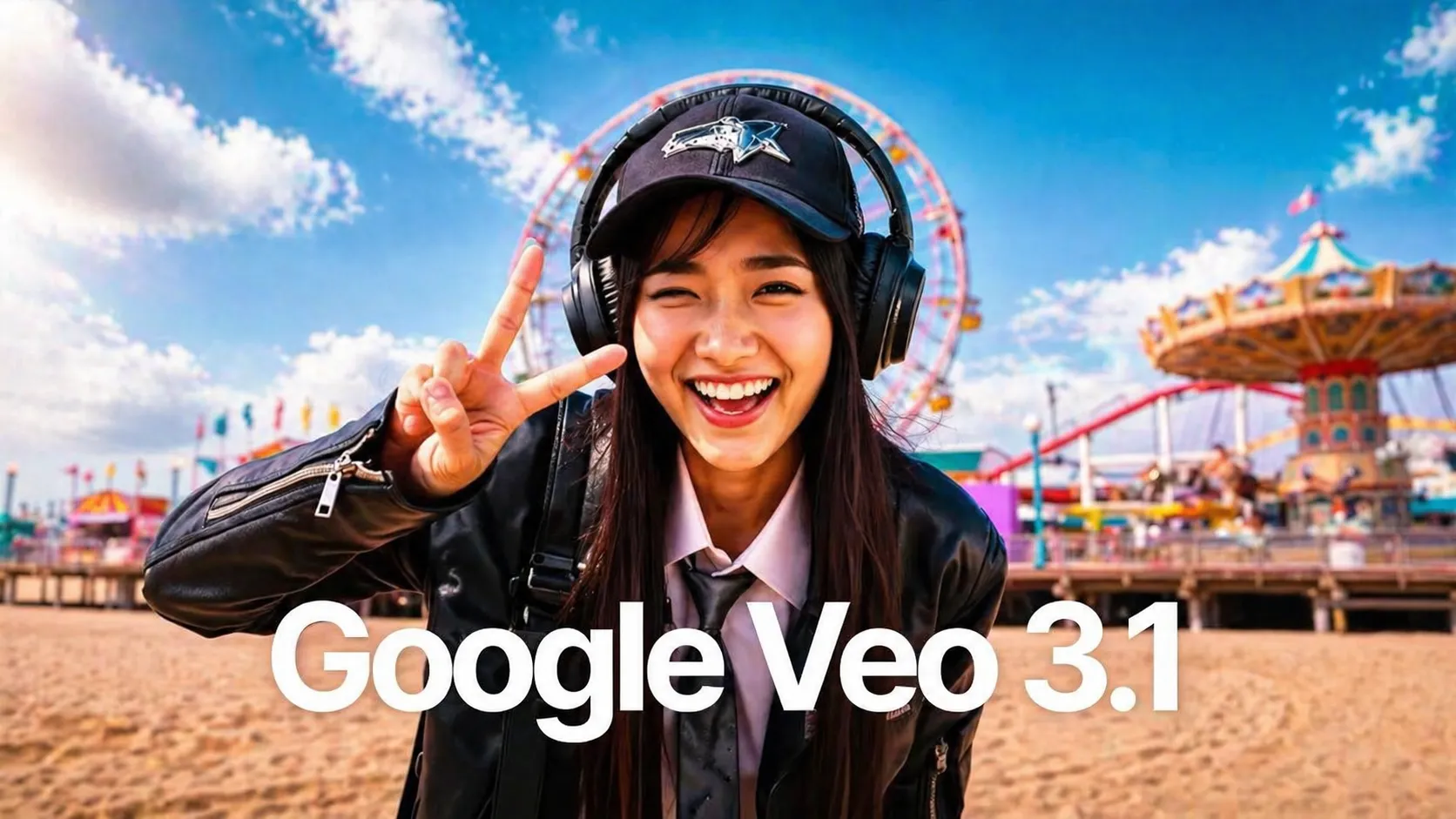

Latest Google release — sharper prompts, smoother motion.
Google

Portrait and character animation at studio quality.
Kuaishou

Alibaba's long-context model — multi-shot scenes.
Alibaba
OpenAI's flagship model — cinematic, photorealistic video generation.
OpenAI

BytePlus next-generation video model — higher fidelity, richer motion, longer clips.
BytePlus
Google's next-gen text-to-image — photorealistic and fast.
Google
BytePlus advanced image model — stunning 4K quality with natural detail.
BytePlusGPT Image 2 is OpenAI's image generation model. It honours multi-clause instructions, renders designed text inside the image cleanly, and produces editorial-quality composition and lighting by default — the model you reach for when the brief has constraints that need to be respected.
Yes — GPT Image 2 is one of the strongest image models for designed text. Headlines, posters, packaging, signage, and UI screens render with legible and correctly-spelled text in most cases, which removes a common manual-editing step for designers.
Yes. Multi-clause briefs with required elements, explicit constraints ("no people in frame", "three specific books", "soft side light"), and tone direction come back honoured. List what you need and the model treats the prompt as a spec.
Square (1:1), landscape (16:9, 4:3), and portrait (9:16, 3:4) at standard and HD resolution — ready for posts, banners, vertical stories, blog headers, and ad placements.
Commercial usage rights depend on your subscription plan through VidOne and OpenAI's content policy. See the pricing page for details on commercial licensing and usage terms.
GPT Image 2 leads on multi-clause instruction following and editorial composition. Nano Banana 2 leads on designed in-image text and the latest Google quality bar. Flux 2 Klein is fast and photoreal with simpler prompts. VidOne lets you compare all three on the same prompt before committing.
Still have questions? Contact our support team

OpenAI's image model treats your prompt like a spec. Multi-clause instructions honoured, designed text rendered cleanly, editorial composition out of the box. Try it free on VidOne.